
Bun.WebView Makes Browser Automation Ridiculously Simple
Forget heavyweight browser automation stacks. With Bun 1.3.12, taking screenshots, scraping pages, and interacting with websites can be as simple as a few lines of TypeScript.

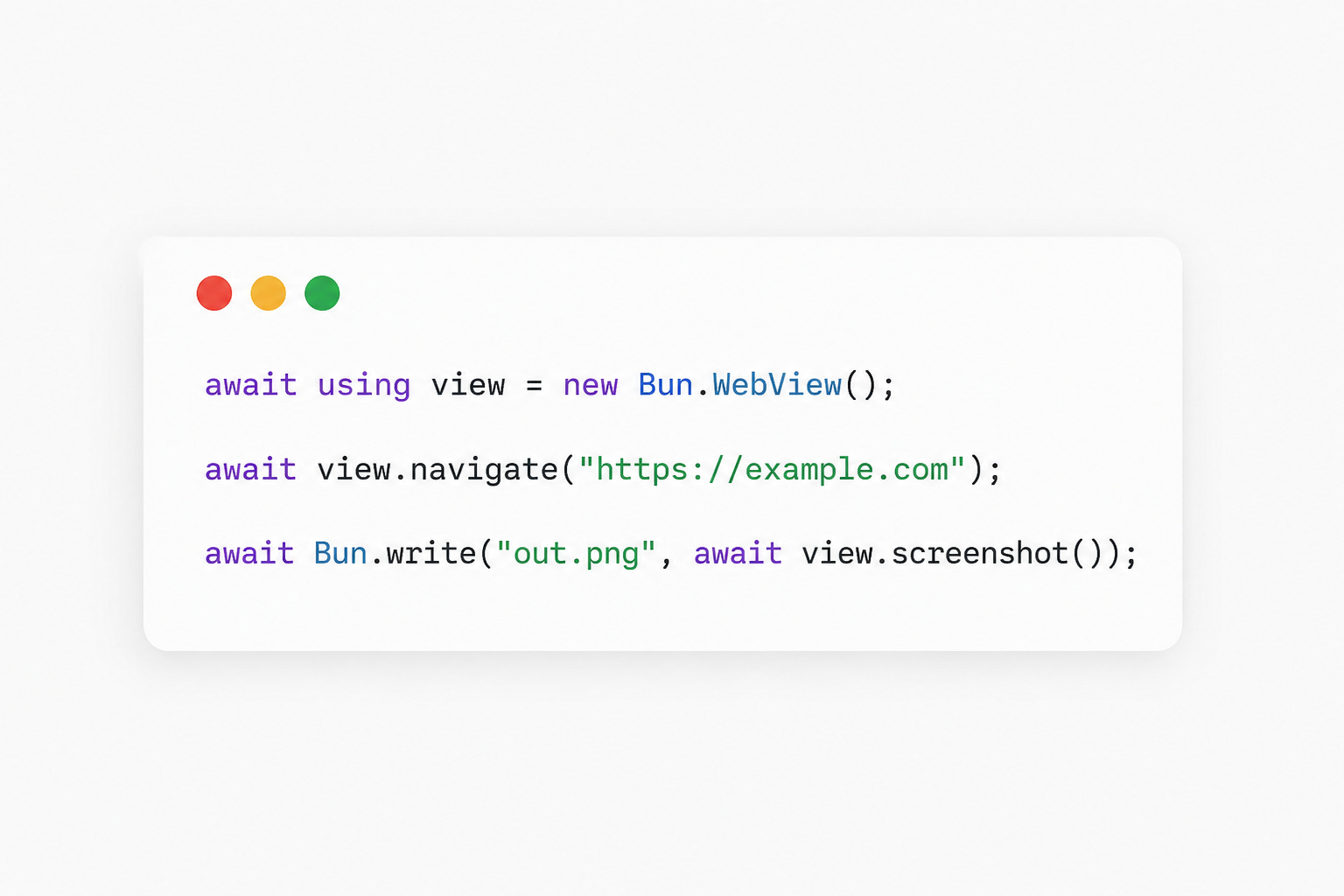
For years, browser automation has usually meant reaching for Puppeteer or Playwright. They’re incredibly powerful, but they also come with a price: large Chromium downloads, extra dependencies, platform-specific setup, and a lot of boilerplate before you can accomplish something simple.
With Bun, there’s now another option.
Bun.WebView is an experimental API built directly into Bun that provides a lightweight way to automate browsers, capture screenshots, execute JavaScript, and simulate real user interactions—all without installing another npm package.
Taking a Screenshot in Three Lines
Getting a screenshot of a webpage really is this simple:
await using view = new Bun.WebView();

await view.navigate("https://example.com");

await Bun.write(
  "page.png",
  await view.screenshot(),
);
Run it:
bun run demo.tsThat’s it.
No Puppeteer installation.
No Chromium download.
No browser launch configuration.
Why Bun.WebView Exists
Many developers only need to:
capture screenshots
scrape page content
test UI interactions
automate repetitive browser tasks
Yet a typical Puppeteer setup often involves:
installing another package
downloading hundreds of megabytes of Chromium
dealing with missing Linux dependencies
waiting for browsers to launch
Bun.WebView aims to remove that friction.
Because it’s built directly into Bun, there’s nothing extra to install.
Platform Support
Bun uses native browser engines whenever possible.
macOS
Uses the system WKWebView.
No configuration required.
Windows & Linux
Bun automatically searches for installed versions of:
Chrome
Chromium
Microsoft Edge
In most cases it simply works.
Install Bun
You’ll need Bun 1.3.12 or newer.
curl -fsSL https://bun.sh/install | bash

bun --version
Then simply execute your script:
bun run demo.tsRunning JavaScript Inside the Page
You can evaluate JavaScript directly in the loaded document.
const view = new Bun.WebView();

await view.navigate("https://example.com");

const title = await view.evaluate(
  "document.title",
);

console.log(title);
evaluate() automatically:
executes JavaScript
waits for Promises
serializes the returned value
Fetching API data becomes trivial:
const posts = await view.evaluate(`
  fetch("/api/posts")
    .then(res => res.json())
`);
No manual serialization is required.
Simulating Real User Actions
Bun.WebView generates native browser input events.
Clicking an element:
await view.click("input[name='search']");Typing text:
await view.type("Bun WebView");Pressing keyboard shortcuts:
await view.press("Enter");Unlike directly changing input.value, these generate actual keyboard events.
That means frameworks like:
React
Vue
Svelte
receive normal user input events exactly as if someone were typing.
Advanced Click Options
Double-click while holding Shift:
await view.click("a.article", {
  button: "left",
  count: 2,
  modifiers: ["Shift"],
  timeout: 5000,
});
Bun automatically waits until the element:
exists
is visible
is stable
isn’t covered by another element
before clicking.
Scrolling and Window Resizing
Scrolling the page:
await view.scroll(0, 600);Changing browser dimensions:
await view.resize(1920, 1080);Useful when testing responsive layouts or generating screenshots at multiple resolutions.
Capturing Screenshots
Entire Page
await Bun.write(
  "full.png",
  await view.screenshot({
    format: "png",
    fullPage: true,
  }),
);
Specific Elements
Capture only one component:
const hero = await view.screenshot({
  selector: "header.hero",
  format: "jpeg",
  quality: 85,
});

await Bun.write("hero.jpg", hero);
Supported formats include:
PNG
JPEG
WebP
WebP files are typically much smaller than equivalent PNG images while maintaining excellent quality.
Choosing a Browser Manually
If automatic browser detection doesn’t find Chrome, specify it yourself.
const view = new Bun.WebView({
  backend: {
    type: "chrome",
    path: "/usr/bin/google-chrome",
  },
});
Reusing an Existing Chrome Instance
If you’re already debugging Chrome:
chrome --remote-debugging-port=9222Connect directly:
const view = new Bun.WebView({
  backend: {
    type: "chrome",
    url: "ws://127.0.0.1:9222/devtools/browser/xxx",
  },
});
Keeping Chrome running between executions can significantly reduce startup time during development.
Scraping Multiple Pages
Here’s a simple crawler that collects page titles.
const urls = [
  "https://bun.sh/blog",
  "https://bun.sh/docs",
  "https://bun.sh/docs/cli/run",
];

await using view = new Bun.WebView();

for (const url of urls) {
  await view.navigate(url);

  const title = await view.evaluate(`
    document.querySelector("h1")?.textContent
      || document.title
  `);

  console.log(`${url} → ${title}`);
}
Multiple WebView instances share the same browser subprocess, making them much lighter than launching separate browser instances.
Persisting Login Sessions
Need cookies to survive between runs?
Simply specify a data directory.
const view = new Bun.WebView({
  dataStore: {
    directory: "./browser-profile",
  },
});
Bun automatically preserves:
cookies
localStorage
browser storage
Log in once, and future runs reuse the same session.
Capturing Browser Console Output
Debugging frontend code becomes much easier.
const view = new Bun.WebView({
  console(type, ...args) {
    console.log(`[${type}]`, ...args);
  },
});
This captures:
console.logconsole.warnconsole.error
directly from the webpage.
Using Chrome DevTools Protocol
Need lower-level browser control?
Bun exposes the Chrome DevTools Protocol (CDP).
Execute a command:
const metrics = await view.cdp(
  "Page.getLayoutMetrics",
);

console.log(metrics);
Subscribe to browser events:
const unsubscribe = view.cdpSubscribe(
  "Network.requestWillBeSent",
  ({ request }) => {
    console.log(request.url);
  },
);

await view.navigate("https://example.com");

unsubscribe();
With CDP you can build advanced tooling for:
network inspection
performance profiling
cookie management
browser instrumentation
request monitoring
Things to Keep in Mind
Bun.WebView is currently experimental, so expect the API to evolve as Bun continues development.
Before using it:
install Bun 1.3.12 or newer
ensure Chrome (or Chromium/Edge) is installed on Linux
remember that macOS uses the built-in WebKit engine automatically
One more important detail: browser sessions create temporary directories. If you don’t dispose of a WebView, those temporary files can accumulate over time.
Using:
await using view = new Bun.WebView();ensures the browser is cleaned up automatically when execution finishes.
Final Thoughts
Bun.WebView isn’t trying to replace mature automation frameworks like Puppeteer or Playwright for complex end-to-end testing. Instead, it targets a different sweet spot: everyday browser automation with almost no setup.
For quick scripts, screenshots, scraping, or lightweight UI automation, the developer experience is refreshingly simple. If you’re already using Bun, you can start experimenting immediately—no extra packages, no massive browser downloads, and only a handful of lines to get real work done.
While the API is still experimental, it’s an exciting glimpse at how browser automation could become a first-class feature of modern JavaScript runtimes.